
What Is an ONT? Full Fibre Box Lights, Setup and Common Problems
 An Optical Network Terminal (ONT) is the small box that connects a full-fibre broadband line to your home network. It converts the optical signal arriving over the fibre into an Ethernet connection for your router. If the ONT shows a warning light or your broadband has stopped working, the meaning depends on the network and the exact model, so use the labels on your own box and your provider’s instructions rather than assuming every ONT behaves the same way.
Ofcom reported that full fibre was available to 24.9 million UK homes, or 82% of homes, in January 2026. As more households move to FTTP, the ONT is becoming a familiar part of the home broadband setup. Ofcom’s Connected Nations Spring 2026 update sets out the coverage figure.
What is an ONT?
An Optical Network Terminal, or ONT, is the network box that ends a full-fibre connection inside your home. It converts the fibre signal into an Ethernet connection for your router, which then shares the connection with your devices.
What does an ONT do?
Fibre-optic cable carries data as pulses of light. At the property, the ONT terminates the fibre connection and presents a standard Ethernet connection to the router. In a typical installation, the path is:
Fibre network → ONT → Ethernet cable → router → Wi-Fi or wired devices
The ONT is part of the access network. Your router handles the home network, including Wi-Fi and connections to phones, laptops, televisions and other devices. The two boxes have different jobs, even when they sit next to each other.
The ONT does not choose your broadband package speed or guarantee that every device will reach that speed over Wi-Fi. The service plan, network conditions, router, Ethernet link and in-home Wi-Fi can all affect the result. If a wired speed test is good but Wi-Fi is weak in one room, the ONT may be working normally and the issue may be inside the home. Our guide to choosing and positioning a broadband router covers the home-network side.
Is an ONT the same as a modem or router?
Not exactly. Some providers call their ONT a fibre modem because it provides the connection between the fibre service and the router. In a conventional full-fibre home setup, though, the ONT and Wi-Fi router are separate devices. The ONT connects to the provider’s fibre access network; the router creates and manages your home network.
You may also see ONU and OLT in technical explanations. ITU-T defines an ONT as an ONU that serves one subscriber. The OLT is network-side equipment that connects the access network to the provider’s wider network. For home troubleshooting, the key distinction is simpler: the ONT ends the fibre connection at your property, while the router manages your local network. Some equipment can combine ONT and router functions, so not every installation has two separate boxes. ITU-T’s definitions explain the technical terms.
An ONT is also not the same as the fibre socket or wall entry point. The fibre cable enters the property and connects to the ONT. Avoid unplugging or bending that thin fibre lead. Its connector is delicate, and looking into an optical connector is unsafe.
Where will I find the ONT?
It is usually a small box fixed to an inside wall, often near where the fibre enters the home. It may be white, black or grey, and the labels and number of lights vary by manufacturer and model. The router is normally nearby and connected to the ONT by an Ethernet cable.
Look for labels such as Power, PON, LOS, Optical, Broadband, Service, LAN, Data or Port 1. The labels are more useful than the colour or shape of the box. If you rent, have just moved in, or cannot identify which box is the ONT, ask your provider before disconnecting anything.
How to identify the ONT ports
The ports are usually easier to identify by their labels than by their position. On a typical separate ONT:
- Optical is where the fibre lead connects. You should not unplug it or look into the connector.
- LAN, Ethernet, Data or Port 1 connects to the router’s WAN or Internet port using an Ethernet cable. Some ONTs have several Ethernet ports, but your provider decides which one is active.
- Power connects to the ONT’s power supply. Some installations also have a separate battery backup unit.
- TEL or Phone sockets appear on some models. Their use depends on the provider and package, so an unused TEL port isn’t automatically a fault.
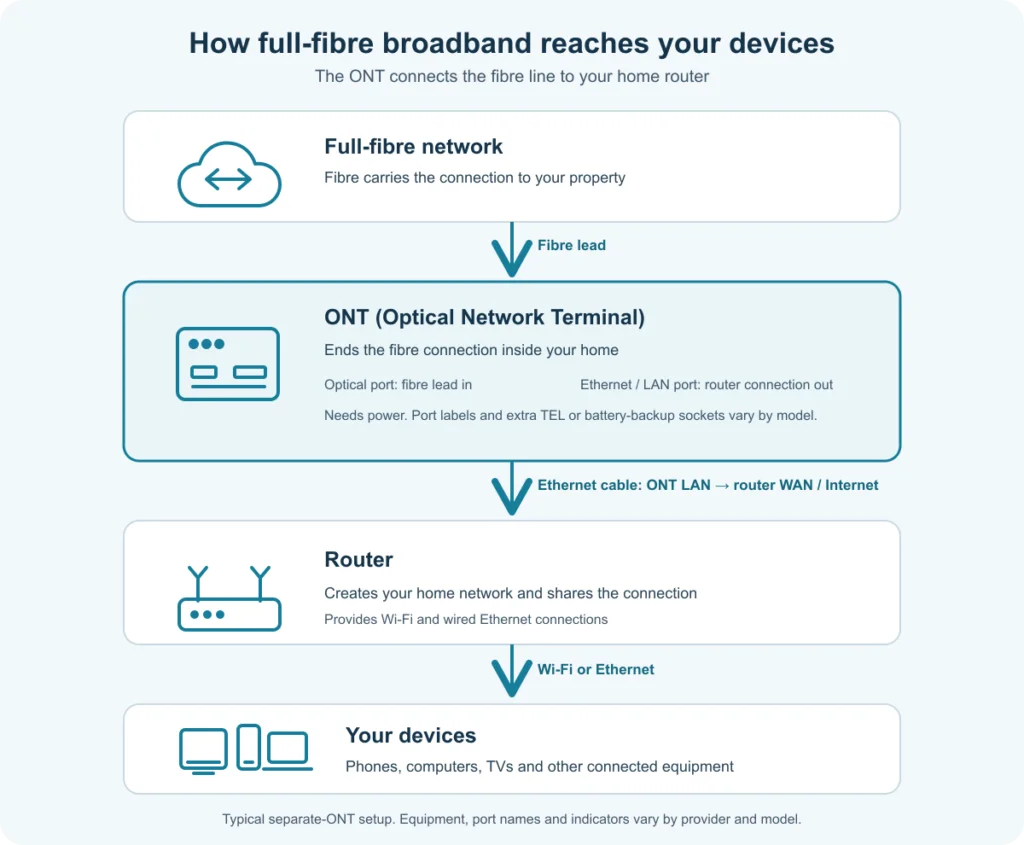
Openreach’s installation guide shows where the ONT sits in a typical home setup, and BT’s port guide explains the connections on Openreach ONTs.
What do the lights on an ONT mean?
There is no single light code for every UK provider. Retail providers may use different network operators, and even equipment on the same network can have different models and labels. PON means Passive Optical Network and LOS means Loss of Signal. The table below gives examples from provider support guidance. It is a starting point, not a universal diagnosis.
| Provider or network example | Typical normal indication in its help guide | What a warning may indicate | Safe first check |
|---|---|---|---|
| Openreach ONTs, including Huawei 1-port and 4-port, ECI and Nokia models | BT’s PON/LOS models show Power green, PON steady green and LOS off when connected. Other models may label optical status differently, and LAN/Port lights vary. | On PON/LOS models, PON off or a red LOS can indicate a fibre-side issue. Power off points first to the power supply. Check the exact model’s guide. | Check power and the Ethernet cable to the router. Follow the provider’s guide for optical warnings; don’t unplug the fibre lead. |
| Sky Full Fibre ONT | Sky lists Huawei, Nokia, Nokia XS-010X-Q/XS-010X-R and Gigapoint GP1002X models. Ports and indicators differ by model. | There isn’t one light pattern to apply across Sky ONTs. Sky’s support guide shows the relevant indicators after you select the model. | Read the manufacturer/model label and use Sky’s matching steps rather than interpreting another ONT’s lights. |
| TalkTalk white Fibre Connection Box | The white-box guide describes Power and PON solid green and LOS off when connected. PORT 1 indicates the Ethernet link/data activity. | PON off or LOS red indicates the box isn’t connected to the network in TalkTalk’s guide; PORT 1 off points to the connection to the hub. | Confirm the Ethernet lead is secure at the ONT and the router’s WAN port. |
| TalkTalk black Fibre Connection Box | The black-box guide gives separate Power, Broadband and Service indicators, with green states for a working connection. Power can flash during startup or a firmware update. | Broadband flashing red or off, or Service off, can indicate a connection/service issue under TalkTalk’s model-specific guide. | Allow startup or a firmware update to finish, then check the cables and TalkTalk’s model-specific guide. |
| CityFibre ONT with Zen service | Zen’s guide covers white Nokia ONTs and black/grey models. White units show Power and PON green with Alarm off; black/grey units show Power, Broadband and Service green, with Ethernet green or flashing. | Alarm, Power, PON or Broadband warnings depend on the model. Data colour alone is not necessarily a fault. | Identify whether your ONT is white or black/grey, then follow the matching Zen guide before restarting it. |
These examples are drawn from BT’s Openreach modem guide, EE’s Openreach modem guide, Plusnet’s full-fibre troubleshooting guide, Sky’s ONT troubleshooting guide, TalkTalk’s white and black box guide and Zen’s CityFibre ONT diagnostics. These are examples from named provider guides, not a universal light code. Check the exact model and its current support page before treating an indicator as proof of a fault.
An Ethernet or LAN light may flash during normal data transfer. A light being off can mean the relevant port is unused, not necessarily that the fibre service is down. On some CityFibre Nokia ONTs used with Zen, the Data light colour reflects the model’s uplink capability, so a yellow, white or blue Data light should not automatically be read as a fault.
What should I do if my ONT lights look wrong?
Use this sequence to work out which part of the connection needs attention:
- Check for an outage or activation issue. Look at your provider’s service-status page and whether more than one device is offline. If the service has just been installed, confirm its activation time.
- If the ONT has no Power light, check its power supply. Make sure the plug is connected and the socket is switched on. If the light stays off, contact your provider rather than opening or replacing the unit.
- If PON, LOS, Broadband, Service or Alarm shows a warning, use the exact model’s guide. These indicators relate to the fibre connection or service, but labels and meanings differ. You can check that the equipment is powered and that visible leads haven’t come loose. Don’t unplug, bend, clean or look into the fibre connector.
- If the fibre indicators look normal but the router is offline, check Ethernet. Make sure the cable runs from an active ONT LAN/Port to the router’s WAN/Internet port and is secure at both ends. If available, test another Ethernet cable.
- If the ONT and router are online but Wi-Fi devices aren’t, test a wired device. A working wired connection with weak or unavailable Wi-Fi points toward the router or home Wi-Fi rather than the incoming fibre link.
- Restart or reset only as your provider instructs. A restart can briefly interrupt broadband and phone service. A factory reset is different and can remove settings, so don’t press the reset button unless your provider tells you to.
If a network warning remains after the provider’s checks, or the fibre lead or ONT appears damaged, contact your broadband provider. They can test the service and arrange support if needed.
Related Articles

Closing the Digital Divide: Progress in Rural Broadband
The digital divide between urban and rural areas is reflected in the choices households can make. Rural broadband shouldn’t be a guessing game. But if you live outside a town or city, you may have fewer providers to choose from and fewer realistic ways to get a faster connection. “More fibre is coming” isn’t much […]

Broadband without a contract
Your Guide to UK Broadband Without a Contract Tired of being locked into lengthy, inflexible contracts? For many in the UK, committing to a 12 or 24-month plan for an internet service they may only need for a short period is simply not an option. This is why the demand for broadband without a contract […]
Does changing broadband provider mean I need a new ONT?
Not necessarily. The ONT is usually installed for the network serving the property and often stays in place when a resident changes retail provider on that same network. The new provider may activate the existing equipment or arrange a different setup. If the new service uses a different network, it may require another ONT or an engineer visit.
The provider and network are not always the same company. For example, a retailer can sell broadband over another company’s fibre network. Check which network and package can serve your address before assuming the existing wall box will be used. You can read more in our guide to XGS-PON technology, which explains one of the access technologies used in full-fibre networks.
What happens to the ONT when I move home?
The ONT normally stays with the property because it is connected to the fixed network installation. Do not remove it or take it to your new address. Tell your provider that you are moving and check which services are available at both addresses. The incoming resident should arrange their own service activation rather than assuming that a powered ONT means broadband is already live.
If you are buying or renting a home with an ONT, keep the box and power supply in place. If it is damaged or missing, tell the provider you plan to use. A network check can establish whether the address is serviceable and whether an engineer needs to visit.
What is the difference between PON and XGS-PON?
PON means Passive Optical Network. It describes a fibre access architecture where a network shares fibre capacity among multiple premises through passive equipment in the access network. XGS-PON is a later PON standard designed for symmetrical capacity up to 10 gigabits per second at the network level. That is not a promise that an individual household will receive a 10Gbps retail package; the package, network design and equipment determine the service offered. Our XGS-PON explainer goes into the technology in more detail.
Compare full-fibre broadband at your address
Check which broadband providers and full-fibre packages are available at your home.
 ONT Frequently asked questions
Can I connect my router directly to the fibre cable?
Usually, no. The fibre lead connects to the ONT, and the router connects to the ONT using Ethernet. Use the setup specified by your provider; do not remove the fibre connector to test it.
Does the ONT provide Wi-Fi?
Most separate ONTs do not provide household Wi-Fi. The router connected to the ONT normally creates the Wi-Fi network. Some providers offer combined equipment, so check the model supplied at your address.
Should the LAN light on my ONT flash?
It can flash when data is passing between the ONT and router. The meaning depends on the model, and a quiet connection may show little activity. Check the provider’s guide for the exact device rather than treating flashing as a fault.
Is a red LOS light always a provider fault?
It usually signals a loss-of-signal condition on models that use an LOS indicator, but the next steps depend on the equipment and provider. Check power and visible connections without disturbing the fibre lead, then contact your provider if the warning remains.
Can I turn my ONT off at night?
The ONT needs power for the fibre service to work. If you switch it off, broadband and any services carried over the connection will stop until it reconnects. Leave it powered unless your provider advises otherwise.
Can I replace the ONT with my own equipment?
No, not as a normal router swap. The ONT is registered and provisioned for the access network. Contact the provider if it is faulty or needs replacement; do not buy a generic ONT and connect it to the fibre line.
Check which full-fibre providers serve your address
ONTs are used with full-fibre services, but the network and providers available vary by address. Enter your postcode to compare the broadband options available where you live.