
Best UK Broadband Routers in October 2026
Best UK Broadband Routers Review
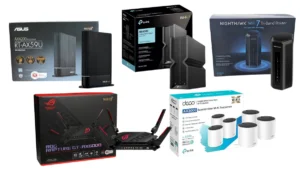 Paying for a fast broadband package is frustrating when the Wi-Fi simply struggles to reach the back of your house.
Replacing the standard router supplied by your internet service provider with a dedicated third-party router can significantly improve the wifi coverage in your home. Routers like the TP-Link Archer BE550 offer better external antennas, helping to push a more reliable signal through interior walls and reduce video buffering.
A £300 gaming router won’t magically fix a degraded Openreach cable on your street, but matching the right networking gear to the physical layout of your property ensures your devices can actually use the bandwidth you’re paying for. Upgrading your home wireless network helps mitigate the impact of thick structural walls. Setting up a new router is usually an incredibly straightforward process (which saves you from having to book engineer visits or re-visits). If you rely on the internet for your livelihood, improving your router can unlock the true benefits of high-speed broadband for remote work.
Benefits of Upgrading Your Broadband Router
Upgrading your router replaces basic internal antennas with dedicated hardware designed to push Wi-Fi signals further. It optimises your local network traffic without requiring professional technical skills to set up.
- Third-party routers feature larger external antennas that help push Wi-Fi signals through structural walls more effectively than basic service provider hubs.
- The TP-Link Archer BE550 offers a balanced technical specification and solid value for modern Wi-Fi 7 connections.
- Thick stone masonry severely limits wireless range, meaning larger or older properties generally require a multi-node mesh system to ensure full coverage.
Why Do Broadband Speeds Slow Down in the Evening?
![Best UK Broadband Routers in [wpdts-custom format="F Y"]](https://bestbroadbandinmyarea.co.uk/wp-content/uploads/bbima-broadband-speedtest-1-png.webp "Best UK Broadband Routers in [wpdts-custom format=\"F Y\"] 9") Evening slowdowns are typically caused by local network contention when dozens of nearby houses use the internet simultaneously. Upgrading your internal router won’t fix this external street-level congestion.
Evening slowdowns are typically caused by local network contention when dozens of nearby houses use the internet simultaneously. Upgrading your internal router won’t fix this external street-level congestion.
Residential broadband connections in the UK typically have a contention ratio of around 50:1. This means you are essentially sharing the same local data pipe at the street cabinet with dozens of other houses in your immediate area. When everyone gets home from work and starts streaming high-resolution video or downloading updates at the same time, the available bandwidth has to be split across all those active lines. This frequently leads to evening broadband congestion.
Think of your local internet connection like a motorway. You might have a fast car, but if you hit the road during rush hour alongside everyone else, traffic inevitably slows down. This bottleneck happens before the internet even reaches your property.
Additionally, some smaller fibre providers and mobile networks use CGNAT to manage thousands of users on a limited pool of IP addresses. While this saves infrastructure costs, it can occasionally cause strict NAT type issues for people trying to host private gaming lobbies. Understanding these physical and network limitations helps you figure out whether a new router will actually solve your problem, or if you are simply hitting the limit of your local street cabinet.
What is CGNAT? Carrier-Grade Network Address Translation (CGNAT) is a system internet providers use to share a single public IP address among thousands of different homes, acting like a digital switchboard to manage limited IP addresses.
How Does Upgrading Your Router Mitigate Dead Zones
Premium router hardware replaces basic internal components with dedicated amplifiers that help the signal travel further. This pushes a stronger radio frequency through the air to mitigate frustrating dead zones.
Your primary router acts as the single broadcasting point for your entire property. Radio waves naturally lose strength as they travel through the air across a living room or up a flight of stairs. Physical obstacles inside your house accelerate this signal decay. You will typically experience attenuation the moment a solid wooden door closes between the router and your laptop.
What is Attenuation? Attenuation is the natural loss of signal strength as radio waves travel through the air or pass through solid physical objects like walls, floors, and furniture.
Standard internet provider routers are designed to handle basic web browsing in average-sized homes. However, a single internal antenna physically struggles to push a high-frequency radio signal through a maze of interior walls. Upgrading your router provides better broadcast management, allowing multiple devices to share the connection efficiently.
Wi-Fi Drop Offs Through Structural Walls
Solid brickwork and foil-backed insulation significantly reduce wireless signal strength as it travels through your property. Manufacturer speed claims are based on empty testing facilities, not typical British homes.
It is important to set realistic expectations based on the physics of radio waves. A standard Wi-Fi 6 router pushing 900 Mbps right next to the box might drop to roughly 400 Mbps after passing through just one standard plasterboard wall at a distance of 10 metres.
Passing that same signal through thick Victorian brickwork at 20 metres causes another significant drop in bandwidth. That original 900 Mbps connection usually reduces down to around 50 Mbps, or occasionally drops out entirely depending on local interference. If you have a modern extension built with energy-efficient foil insulation, the material acts like a physical shield, meaning you will likely need to run Ethernet cables or deploy mesh nodes to bypass the obstruction completely.
Top Broadband Routers Available in October 2026
Buying a third party router gives you granular control over your local network. Heavy multi-device streaming usually requires technical hardware designed specifically for high-capacity traffic loads.
Standard provider equipment is perfectly adequate for basic daily use (and costs nothing extra). However, if you’ve signed up to a fast broadband package and want ensure you actually get the speeds they advertise, upgrading your networking gear is a sensible move. The devices listed below offer some of the most advanced technical specifications available to consumers this year.
TP Link Archer BE550 Wi Fi 7 Router
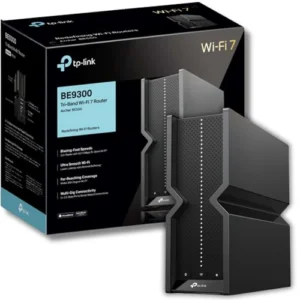 The Archer BE550 provides advanced Wi-Fi 7 capabilities featuring 320 MHz channel widths. It delivers up to 9214 Mbps of total bandwidth across three frequency bands to support heavily congested modern households.
TP-Link currently offers exceptional technical value with this BE9300 Tri-Band router. The 6 GHz band achieves a maximum throughput of 5760 Mbps, while the 5 GHz band hits 2880 Mbps. Older legacy devices are supported by the 2.4 GHz band, which provides up to 688 Mbps. It utilises 320 MHz channel widths and 4K-QAM modulation to double the standard transmission speed and pack 20% more data into each transmission compared to older Wi-Fi 6 hardware.
The router features one 2.5 Gbps WAN port and four 2.5 Gbps LAN ports on the back. This specific port configuration allows you to break past the standard Gigabit bottleneck, making it highly suitable for multi-gigabit fibre lines. Connecting your primary devices directly into these ports will always reduce latency more effectively than relying on a wireless connection. It also includes Multi-Link Operation (MLO) technology, which allows devices to send and receive data across different frequency bands simultaneously to improve reliability.
What is Latency? Latency, often called ping, is the exact time in milliseconds it takes for a data packet to travel from your computer to a remote server and back. Lower latency means faster reactions during online gaming or video calls.
You can typically purchase the TP-Link Archer BE550 directly from major UK electrical retailers, including Amazon, Currys, and Argos.
TP Link Archer BE550 Key Features Summary
- Wi-Fi Standard: Wi-Fi 7 (Tri-Band BE9300)
- Wired Connections: Five 2.5 Gbps ports (1x WAN, 4x LAN)
- Advanced Tech: Multi-Link Operation (MLO) and 320 MHz channels
Asus RT AX59U Wireless Router
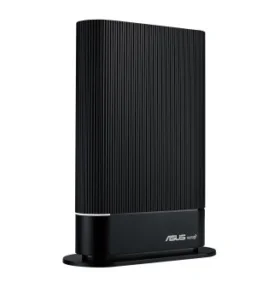 The Asus RT-AX59U operates on the Wi-Fi 6 standard and provides up to 4200 Mbps of total throughput. It offers an excellent balance of technical capability and affordability for average households.
This device is a highly practical option if you are looking to improve your network stability on a stricter budget. The router delivers maximum data transfer rates of 3603 Mbps on the 5 GHz frequency and 574 Mbps on the 2.4 GHz frequency. It is powered by a 2.0 GHz quad-core processor paired with 512 MB of RAM and 128 MB of flash memory. This processing power handles concurrent traffic and heavy video conferencing without dropping packets.
The unit features one Gigabit WAN port and three Gigabit LAN ports, alongside a USB 3.2 Gen 1 port for network storage. Asus includes built-in AiProtection network security (powered by Trend Micro) without requiring an ongoing monthly subscription, which helps protect the devices connected to your network from malicious files. Five internal antennas manage the wireless broadcast, and it fully supports AiMesh, allowing you to link it with other compatible Asus routers to expand your coverage later.
The Asus RT-AX59U is widely available to buy online through retailers such as Amazon, Currys, and specialised tech stores like Scan or Overclockers UK.
Asus RT AX59U Wireless Router Key Features Summary
- Wi-Fi Standard: Wi-Fi 6 (Dual-Band AX4200)
- Wired Connections: Four 1 Gbps ports (1x WAN, 3x LAN)
- Security: Subscription-free AiProtection Pro
Netgear Nighthawk RS700S Wi Fi 7 Router
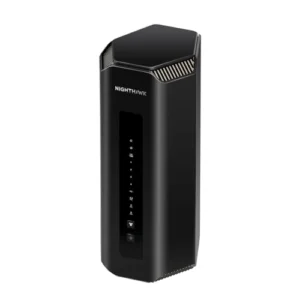 The RS700S is a premium Wi-Fi 7 router designed to handle extreme multi-gigabit broadband connections. It delivers a massive 19 Gbps of total throughput and includes dedicated 10 Gbps Ethernet ports.
Netgear charges a significant premium for this hardware, but the technical specifications are staggering. The tri-band system produces an enormous 11.5 Gbps on the 6 GHz network, 5.8 Gbps on the 5 GHz network, and 1.4 Gbps on the 2.4 GHz band. It is driven by a Broadcom BCM6726/3 quad-core processor running at 2.6 GHz and contains 2 GB of RAM. Eight high-performance internal antennas are housed inside its tall, cylindrical chassis to maximise broadcasting power.
This unit is specifically built for people paying for the absolute fastest fibre lines in the country. It includes one 10 Gbps WAN port to receive the incoming internet feed and a secondary 10 Gbps LAN port for wiring a heavy-duty workstation or local server. It also features four standard Gigabit LAN ports. The 320 MHz channels ensure that compatible Wi-Fi 7 smartphones and laptops receive unprecedented airborne data speeds.
Due to its premium price point, the Nighthawk RS700S is best purchased from trusted tech retailers like Amazon, Currys, or directly from the official Netgear UK website.
Netgear Nighthawk RS700S Key Features Summary
- Wi-Fi Standard: Wi-Fi 7 (Tri-Band BE19000)
- Wired Connections: Dual 10 Gbps ports (WAN/LAN) and four 1 Gbps LAN ports
- Hardware: 2.6 GHz quad-core processor with 2 GB RAM
TP Link Deco X55 Pro Mesh System
 The Deco X55 Pro is a multi-node mesh system designed to bypass thick masonry and eliminate dead zones. It features dual 2.5 Gbps ports on every node to support high-speed wired backhauls.
Larger properties generally require a mesh system for full coverage. The Deco X55 Pro operates on the Wi-Fi 6 standard, transmitting up to 2402 Mbps on the 5 GHz frequency when utilising 160 MHz channels, alongside 574 Mbps on the 2.4 GHz band. You simply place the main unit next to your internet entry point and plug the secondary nodes into power sockets in other rooms.
What sets the Pro model apart from the standard version is the inclusion of two 2.5 Gbps Ethernet WAN/LAN ports on every single unit. This allows you to run a physical cable between the nodes to create a flawless wired backhaul, or you can hardwire a television directly into a secondary node to receive multi-gigabit speeds. It relies on AI-driven mesh technology to optimise routing paths as you walk around the house, ensuring your devices always connect to the strongest possible node.
Mesh kits like the Deco X55 Pro (usually sold in 2-packs or 3-packs) can be purchased easily from Amazon, Argos, and Currys.
TP Link Deco X55 Pro Mesh System Key Features Summary
- Wi-Fi Standard: Wi-Fi 6 Mesh (Dual-Band AX3000)
- Wired Connections: Two 2.5 Gbps ports per node
- Coverage: AI-Driven seamless roaming between rooms
Asus ROG Rapture GT AX6000 Gaming Router
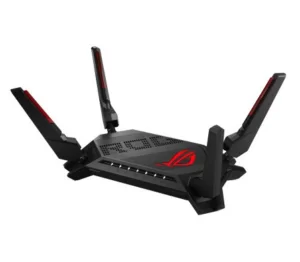 The ROG Rapture GT-AX6000 is engineered specifically for competitive gamers demanding minimal lag. It features deep traffic prioritization tools and dual 2.5 Gbps ports for gaming consoles.
Gamers who frequently play competitive titles often benefit from routers designed to manage intensive network traffic. This unit uses advanced QoS software to inspect incoming data packets. This prioritises your gaming server traffic over other background tasks on your network. It also features two 2.5 Gbps ports to handle large data transfers between your modem and your primary gaming console.
Using a router like this won’t instantly make you a better player, but it helps mitigate lag spikes and reduce bufferbloat when someone else in the house streams a 4K movie. It is arguably a strong contender when setting up the best broadband for gamers.
What is QoS? Quality of Service (QoS) is administrative router software that identifies and prioritises specific types of internet traffic, ensuring your gaming data always jumps ahead of someone else’s background download.
You can find the ROG Rapture GT-AX6000 stocked at Amazon, Currys, and specialist gaming hardware retailers across the UK.
Asus ROG Rapture GT AX6000 Gaming Router Key Features Summary
- Wi-Fi Standard: Wi-Fi 6 (Dual-Band AX6000)
- Wired Connections: Two 2.5 Gbps ports and four 1 Gbps LAN ports
- Gaming Tech: Triple-level game acceleration and mobile game mode
Top Broadband Routers Summary
| Router Model | Wi-Fi Standard | Top Technical Feature | Maximum Total Throughput |
|---|---|---|---|
| TP-Link Archer BE550 | Wi-Fi 7 | Five 2.5 Gbps Ethernet Ports | 9214 Mbps |
| Asus RT-AX59U | Wi-Fi 6 | Subscription-Free AiProtection Security | 4200 Mbps |
| Netgear Nighthawk RS700S | Wi-Fi 7 | Dual 10 Gbps Ports (WAN & LAN) | 19 Gbps |
| TP-Link Deco X55 Pro | Wi-Fi 6 | AI-Driven Mesh Routing | 3000 Mbps |
| Asus ROG Rapture GT-AX6000 | Wi-Fi 6 | Advanced Gaming QoS Prioritization | 6000 Mbps |
Related Articles

Fibrely Broadband Review
Fibrely Broadband Review – Packages, Technology & Customer Ratings Fibrely is a retail-only full fibre broadband provider offering FTTP packages from 115Mbps to 1,000Mbps across Openreach FTTP, CityFibre and Freedom Fibre networks. They hold a Trustpilot rating of 4.4/5 and earned Uswitch Excellence Accreditation in 2026. Fibrely is one of those broadband providers that has […]

One Touch Switch (OTS) Broadband Switching
One Touch Broadband Switching – The Easiest Way to Change Broadband Providers in One Touch Switch (OTS) is the industry-standard process that allows UK broadband customers to switch providers by simply signing up with the new internet provider. Fully implemented since September 2024, it removes the need to speak to your old provider to cancel, […]
Comparing Free Internet Service Provider Routers
Major internet providers supply standard hardware that is perfectly capable of handling basic daily tasks. The physical fibre or copper connection entering your property remains the bottleneck regardless of your router choice.
These standard Internet Service Provider (ISP) devices are generally capable pieces of hardware that handle everyday tasks well. The physical Openreach or CityFibre connection entering your property remains exactly the same regardless of which router you use to broadcast the signal. Checking what speeds your property can actually handle is as simple as using the CityFibre coverage checker or an Openreach equivalent.
Who are Openreach? Openreach is the company that builds and maintains the physical cables and street cabinets for the majority of the UK internet network. Providers like BT, Sky, and TalkTalk rent these physical lines to sell you a service.
BT Smart Hub 2
![Best UK Broadband Routers in [wpdts-custom format="F Y"]](https://bestbroadbandinmyarea.co.uk/wp-content/uploads/btbroadband-v8c.png "Best UK Broadband Routers in [wpdts-custom format=\"F Y\"] 15") BT provides the Smart Hub 2 to customers signing up for their standard fibre packages.
BT provides the Smart Hub 2 to customers signing up for their standard fibre packages.
This solid piece of hardware features seven internal antennas designed to push signals through standard modern internal walls. The router currently uses the older Wi-Fi 5 (802.11ac) standard, broadcasting across dual-band 2.4 GHz and 5 GHz frequencies. While it lacks the latest wireless technology, it manages everyday web browsing flawlessly. The rear of the device includes four standard 1 Gbps Ethernet ports for wired connections (one acts as a WAN port on full-fibre lines), alongside a USB port and a dedicated phone socket for BT’s Digital Voice service. The device actively monitors the connection and changes broadcasting channels automatically to find the clearest frequency in crowded areas.
Virgin Media Hub 5
![Best UK Broadband Routers in [wpdts-custom format="F Y"]](https://bestbroadbandinmyarea.co.uk/wp-content/uploads/virginmediabroadband-v8c.png "Best UK Broadband Routers in [wpdts-custom format=\"F Y\"] 16") Virgin Media supplies the Hub 5 to customers taking their faster Gig1 broadband plans.
Virgin Media supplies the Hub 5 to customers taking their faster Gig1 broadband plans.
This advanced hub supports the modern Wi-Fi 6 (802.11ax) protocol, allowing it to communicate far more efficiently with multiple Wi-Fi 6-enabled devices simultaneously. It features an upgraded 2.5 Gbps Ethernet port on the rear alongside three standard 1 Gbps ports, which allows users to physically hardwire devices and pull the full 1130 Mbps offered by the Gig1 tier. Wireless coverage shows a significant improvement compared to their older Hub 3 and Hub 4 models, backed by seven enhanced internal antennas. Dozens of connected smart home devices can run smoothly without causing major slowdowns on the main network.
Sky Max Hub
![Best UK Broadband Routers in [wpdts-custom format="F Y"]](https://bestbroadbandinmyarea.co.uk/wp-content/uploads/skybroadband-v8c.png "Best UK Broadband Routers in [wpdts-custom format=\"F Y\"] 17") Sky offers the Max Hub (model SR213) to customers who opt for their Wi-Fi Max subscription guarantee.
Sky offers the Max Hub (model SR213) to customers who opt for their Wi-Fi Max subscription guarantee.
This hardware secures modern Wi-Fi 6 (802.11ax) technology designed to push strong signals across busy households using dual-band 2.4 GHz and 5 GHz frequencies. On the back, it features four Gigabit Ethernet ports, one of which can operate as a WAN connection to a full-fibre Optical Network Terminal (ONT). It integrates seamlessly with up to three proprietary Sky Max Pods to form a larger mesh network for bigger homes. It also includes newer WPA3 security encryption and advanced parental controls bundled directly into the official MySky mobile application.
EE Smart Hub
 EE promotes its Smart Hub hardware (such as the Smart Hub Plus or SH31B model) for customers taking their premium full-fibre packages.
This device broadcasts strong Wi-Fi 6 signals clearly through average-sized houses, utilising seven internal antennas and dual-band capabilities. It is equipped with four 1 Gbps LAN ports and a faster 2.5 Gbps WAN port specifically to receive the incoming full-fibre feed without bottlenecking the connection. It partners flawlessly with EE’s Smart Wi-Fi booster discs to create a unified mesh network. Furthermore, it supports WPA3 encryption for enhanced security over older hardware. Customers do not own the hardware and must return the equipment after cancelling their contract.
Best Broadband Routers UK FAQs
Do I Really Need To Replace My Free Provider Router
Replacing a free provider router is not always necessary for average households running a few devices. Standard provider equipment usually manages daily web browsing effectively without any additional cost.
Standard internet company equipment handles basic web browsing, social media, and occasional video streaming perfectly well for a two-person home. You usually only hit the technical limits of free hardware when connecting dozens of smart devices simultaneously or trying to stream high-resolution video through several thick walls. Provider hubs are designed to cater to typical daily usage rather than extreme multi-gigabit demands.
However, if you experience constant dropouts or terrible range, buying a dedicated third-party device is a sensible troubleshooting step. Upgrading adds advanced network controls and provides superior antennas that often cut right through typical household interference more effectively.
What Makes Wi Fi 7 Better Than Older Standards
Wi-Fi 7 uses 320 MHz channel widths to push unprecedented amounts of data through the air. This structural advantage significantly reduces latency and increases maximum throughput for compatible devices.
This standard utilises ultra-wide data channels to push massive amounts of information quickly, making it easier to achieve multi-gigabit speeds on a modern wireless laptop. The technology uses Multi-Link Operation (MLO) to send data across multiple radio frequency bands simultaneously, meaning your phone can switch to a clearer frequency if there is heavy interference on a specific channel. If you are comparing Wi-Fi 7 vs Wi-Fi 6, this ability to manage network congestion is a major step forward.
Keep in mind that you need a modern smartphone or laptop that physically supports Wi-Fi 7 to actually take advantage of these new features. Upgrading your router future-proofs your network, but older devices will still operate at their original hardware limits.
Can A New Router Speed Up My Slow Internet Connection
A new router cannot magically increase the physical broadband speed arriving at your home from the street cabinet. It only helps your internal devices use the bandwidth that is already available.
Your household remains strictly limited by the specific package speed you purchase from your provider. Hitting 500 Mbps speeds physically isn’t possible on a basic 35 Mbps FTTC copper connection, and upgrading the internal hardware won’t fix degraded external street wiring. You can run an internet speed test near the router to see if your incoming line is the actual bottleneck.
What is FTTC? Fibre to the Cabinet (FTTC) is a connection where fibre optic cables run to the green cabinet on your street, but older, slower copper wires carry the internet the rest of the way to your house.
New routers simply help ensure your devices receive as much of the available speed as possible. By eliminating artificial bottlenecks caused by weak internal processors or small antennas, a good router maximises the bandwidth your provider delivers. If your line speed is the issue, you need to upgrade your actual broadband package first.
How Do I Connect A Third Party Router To My Existing Line
Connecting a third-party router directly to your existing setup usually requires plugging a single Ethernet cable into the modem. The entire setup process is managed through a simple mobile application.
For full-fibre (FTTP) connections, you simply plug the Ethernet cable into the WAN port on your new router and connect the other end straight into the Optical Network Terminal (the small white box on your wall). Power it up and follow the straightforward setup instructions inside the manufacturer’s mobile app (which is usually completely free).
What is FTTP? Fibre to the Premises (FTTP) is an internet connection that uses glass optical cables running entirely from the telephone exchange straight into the inside of your house, delivering the fastest and most reliable speeds available.
If your provider supplies a combined modem and router unit, you often need to switch their equipment into “modem mode” first. This configuration disables their built-in Wi-Fi and passes the raw internet feed straight into your new equipment. Checking your specific provider’s rules regarding third-party hardware compatibility is always a sensible first step.
What Is A Mesh Router System
Mesh router systems use multiple small broadcast nodes placed around the house rather than one single, central router. The nodes communicate with each other wirelessly to bypass physical architectural barriers.
Placing the main node near your internet entry point and scattering the other nodes around your house creates a wider blanket of strong Wi-Fi. This helps push the signal past thick stone walls or underfloor heating, which traditional single routers often struggle to penetrate. It is a highly practical solution for difficult layouts.
Smartphones and laptops automatically connect to the nearest node as you move around the property. You don’t have to manually select a different network name from your settings menu (which makes moving between rooms completely seamless). This technology is an excellent solution for eliminating dead zones in large or sprawling houses.
Is A Gaming Router Actually Worth The Extra Money
Dedicated gaming routers provide noticeable benefits if you play competitive online titles that demand extremely stable connections. They actively prioritise gaming data packets over background household traffic.
Advanced software tools actively inspect incoming data to ensure your gaming traffic is processed first, meaning your connection remains stable even if someone else starts streaming a 4K movie in the living room. This physical prioritization helps reduce sudden lag spikes in fast-paced shooter games.
These routers also feature multiple high-speed Ethernet ports designed specifically to handle large data transfers for gaming consoles. However, if you only play casual single-player games or primarily use the internet for web browsing, spending the extra money on a gaming router is generally unnecessary.
Do Thick Walls Ruin Wireless Router Performance
Thick Victorian brickwork and solid stone walls severely degrade wireless router performance. You will typically experience noticeable speed drops the moment a high-frequency Wi-Fi signal tries to penetrate heavy masonry.
Modern foil-backed insulation boards can act like metal shields that bounce the signal backward, meaning you might have terrible Wi-Fi in a brand-new kitchen extension despite having a fast connection at the front of the house. Radio frequencies physically cannot pass through dense materials without losing strength.
Buying a multi-node mesh system or a dedicated powerline adapter kit is the most effective way to beat these physical barriers. A single router with slightly larger antennas rarely solves a thick wall problem through brute broadcasting power alone. Physically bypassing the obstruction using dedicated relay hardware or a wifi installation guide is the best approach.
How Long Does A Broadband Router Usually Last
High-quality broadband routers generally deliver peak performance for around four to five years. Over time, the internal components slowly degrade from constant heat exposure.
You might find yourself needing to reboot the device more often just to maintain a steady connection as the hardware ages. Consumer electronics don’t last forever in a constantly connected, high-traffic household where they run 24 hours a day.
Wireless technology standards also evolve quickly. A top-tier router from 2021 lacks the advanced radio frequencies needed to serve the latest October 2026 smartphones efficiently. Updating your primary networking hardware twice a decade is a sensible rule of thumb for maintaining optimal digital performance.
Can I Run A Physical Cable From My Router To My Television
Running a standard Ethernet cable directly from your router to your smart television provides a highly stable connection for streaming. This completely bypasses any airborne radio interference.
Plugging the cable into any available LAN port on the back of the router guarantees a solid data feed. This wired connection prevents high-resolution movies from buffering halfway through a scene. Ethernet cables provide the lowest latency possible for consumer setups.
Stationary devices that consume massive amounts of data, like televisions and gaming consoles, should always be hardwired if possible. Wiring these devices also frees up valuable wireless bandwidth for your mobile phones and tablets moving around the house.
Does Placing My Router Near A Window Improve The Signal
Placing a router on a windowsill usually degrades your network performance rather than improving it. Shooting the signal straight out into the front garden wastes a significant portion of your wireless broadcasting power.
Furthermore, exposing sensitive internal electronics to direct sunlight and extreme temperature fluctuations can damage the hardware over time. Routers require central placement to perform effectively inside the property.
The best location is typically as close to the physical centre of your house as possible. Elevating the device onto a high shelf broadcasts the signal more clearly over heavy wooden furniture and sofas. Keeping the unit away from microwaves and baby monitors also helps prevent severe radio frequency interference.
How Does the UK Copper Switch Off Affect My Router Choice
The impending UK copper switch-off fundamentally changes how landline phones connect to your home. All voice calls will eventually route directly over your internet connection.
If you rely on a traditional landline phone, you must ensure your new router features an analogue telephone adapter port, or you will need to continue using the specific hub provided by your internet company to keep your phone active. Most standard third-party routers do not include phone ports for legacy handsets.
If you do not use a landline, the switch-off will simply mean migrating to a faster full-fibre connection. This allows you to choose any modern Wi-Fi 6 or Wi-Fi 7 router to maximise your new, faster speeds without worrying about voice compatibility.
Does Upgrading My Router Help If I Live In A Congested Area
Upgrading your router helps optimise the connection inside your home, but it cannot fix external network congestion. A new router won’t increase your overall line speed if the street cabinet is overloaded.
If you live in a dense housing estate or a block of flats, you might suffer from interference caused by dozens of neighbouring Wi-Fi networks fighting for the same 2.4 GHz channel. Upgrading to a modern router helps mitigate this by utilising less congested frequencies, but it requires understanding the 2.4 GHz vs 5 GHz Wi-Fi bands to configure correctly.
However, if the actual street cabinet is overloaded with too many users trying to download at 8 PM, your best option is to look for the best broadband in my area and switch to an alternative network, such as CityFibre or Virgin Media, to bypass the congested Openreach cabinet entirely.
Will A 5G Router Replace Fixed Line Broadband
Using a mobile 5G broadband internet router is an increasingly viable alternative for homes suffering from slow fixed-line speeds. It connects to local mobile phone masts rather than relying on underground cables.
However, 5G connections generally have higher latency than full-fibre lines, making them slightly less ideal for competitive gamers. If you have access to a reliable, fixed full-fibre line, it remains the more stable long-term option for heavy household usage.
Does Switching Providers Mean I Have To Change Routers
When you switch internet providers, you almost always receive a new router in the post and have to return your old one. You will need to reconnect all your smart devices to the new network.
The migration process itself has become significantly easier thanks to the new One Touch Switch system, which requires your new provider to handle all the cancellation details with your old provider. However, you will still need to physically unplug your old router, plug in the new one, and update all your devices with the new Wi-Fi password.
If you own a third-party router, you avoid this hassle entirely. You simply unplug your personal router from the old modem, plug it into the new one, and your internal home network remains exactly the same, saving you from having to reconnect every smart bulb and television in the house.